1password cli plugins on macOS stopped working from Atuin desktop terminals

Got kind of a strange issue here and I’m honestly not sure if it’s related to Atuin Desktop but it seemed to start after the 0.2.x update and has only been an issue in Atuin Desktop terminals so I figured I’d see if anyone has an idea.

I use the 1Password cli op from my runbooks a lot and rely on the shell plugins like Use 1Password to authenticate the AWS CLI with biometrics | 1Password Developer . I’ve been using that from Atuin Desktop terminals and it’s worked great. However, after the most recent updates to Atuin Desktop my runbook terminals that use the 1Password AWS shell plugin just hang. I can run the same commands from my standard terminal environment (ghostty + zsh) without any issues.

The problem isn’t with the op cli in general. If I run a command like op --account “myaccount” read “op://some-secret” from an Atuin Desktop terminal it works just fine. It seems to be only when it’s executing any plugin related commands. I can also reproduce this just by running op plugin clear aws --all from an Atuin Desktop shell. This command doesn’t even require accessing secrets from 1Password. It’s just removing config from the environment about the previously active set of AWS credentials in that shell.

I’ve tried getting debug output from op to see what is different between ghostty and Atuin Desktop but nothing seems to stand out.

ghostty

1:13PM | WARN | unable to find default credentials: lstat /var/folders/j3/1nwc437509j91c97q60yzg_c0000gn/T/com.agilebits.op.501/.u01TlMrTeK2bdlv5.terminal_session.aws: no such file or directory
1:13PM | WARN | unable to find default credentials: directory configuration not found
... and then a bunch of other stuff as it goes on to work normally

Atuin Desktop

1:11PM | WARN | unable to find default credentials: lstat /var/folders/j3/1nwc437509j91c97q60yzg_c0000gn/T/com.agilebits.op.501/.EDeVFgS1HVpLPDTA.terminal_session.aws: no such file or directory
... hangs

The only other that that stands out to me is that when op hangs I can see that it is using a lot of CPU so I assume it’s not like stuck trying to open a file or waiting on input.

Maybe this is a better question for 1Password support but I’m curious if anyone here knows what kind of differences the Atuin Desktop terminal would have that could be relevant here.
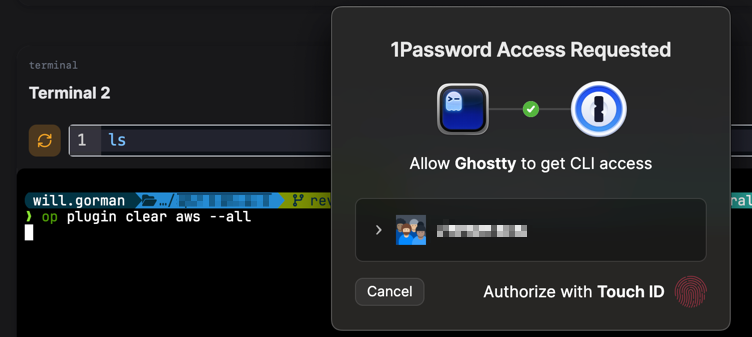
Thanks for reporting this!

I’m not 100% sure what could be causing this just yet. We did make some changes to how environment variables are set in the desktop app - it now inherits the environment from your default shell, even if started from Spotlight or Finder. This is to ensure that things like PATH are set correctly across the board.

The next release will contain some new configuration options that we can use to try to debug what’s going on here — I’ll update this thread when I have more information.

@willgorman The latest version of Atuin Desktop, v0.2.6, will allow us to disable the environment import on startup to see if that helps resolve your issue or if we need to look elsewhere.

  1. Update to Atuin Desktop v0.2.6
  2. Quit the app
  3. Create a config file disabling the environment import:
    • macOS: echo "copy_shell_env: false" >> ~/Library/Application\ Support/sh.atuin.app/advanced_settings.yaml
    • Linux echo "copy_shell_env: false" >> ~/.config/sh.atuin.app/advanced_settings.yaml
  4. Start the app as normal

You can verify that the app is skipping the environment import by checking the logs, either in your log directory, or by running it on the command line. (On macOS, this is /Applications/Atuin.app/Contents/MacOS/atuin-desktop.) Near the top of the output, you should either see [INFO][atuin_desktop::util] Loading environment from login shell: <your shell>, or [WARN][atuin_desktop] Skipping login shell environment copy due to advanced configuration settings

Thanks, that worked!

I was hoping I could see some difference in the environment from an atuin terminal between copy_shell_env: false and copy_shell_env: true that might point me towards what is causing trouble with op. When comparing the output of env from each case the only differences I see are things that I would expect to change, like ATUIN_SESSION_ID.

Something else I happened to notice while experimenting with this setting is that when I run atuin from the command line then op plugins commands work even with copy_shell_env: true However in this scenario 1Password sees the request as coming from ghostty (where i launched atuin) rather than from atuin (as it normally does when atuin has been launched from the Finder). I don’t know what to make of that but at least it means I still have a way to run Atuin with copy_shell_env: true if I need to.